LINE Notification Setup Guide
Initial setup instructions for using the "LINE Notification Feature" in Safe Touch Mail.
* Please make sure to perform these settings on a computer (PC).
[Important] The number of free monthly messages is determined by your LINE Official Account plan. Please consider a plan based on the number of registered IC cards.
LINE Messaging API Pricing
❶ Create a LINE Official Account
Create an account from LINE Official Account.
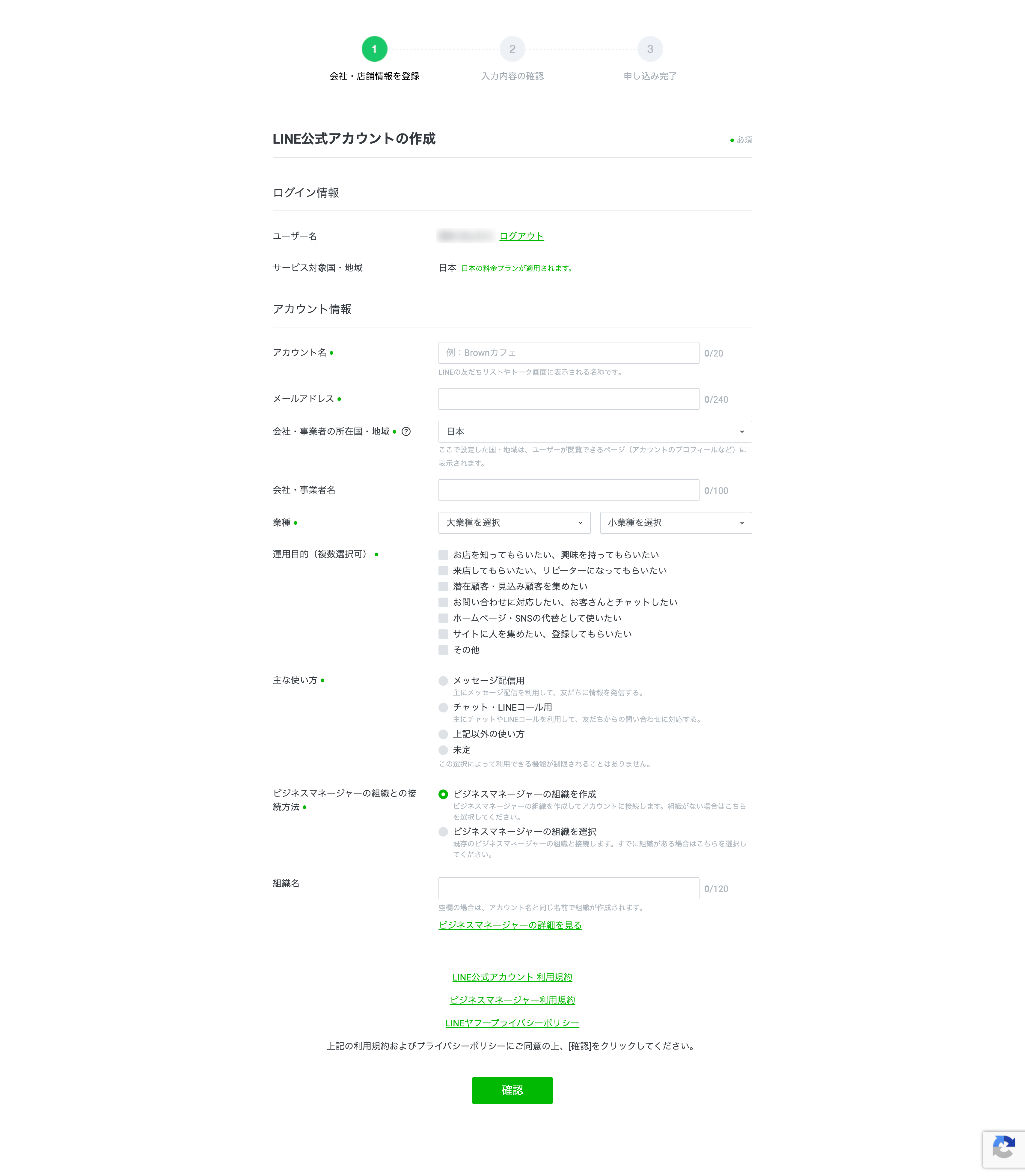
* If you have never logged into the LINE Developers Console with the account you use for the LINE Official Account Manager, a screen to register developer information will appear during the process. Enter your name and email address to create a developer account.
❷ Enable Messaging API and create a channel
Select the created "LINE Official Account" from the account list.
https://manager.line.biz/
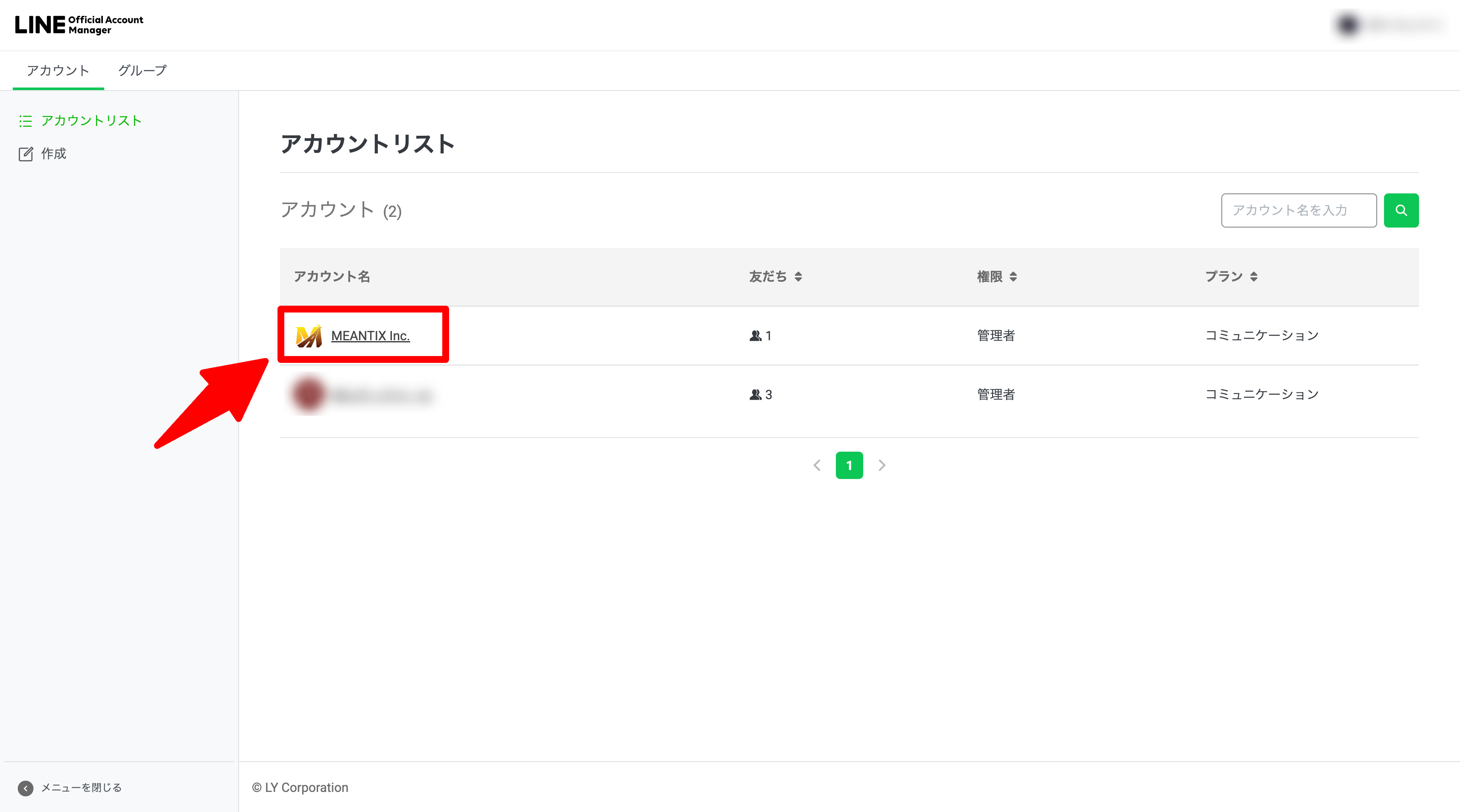
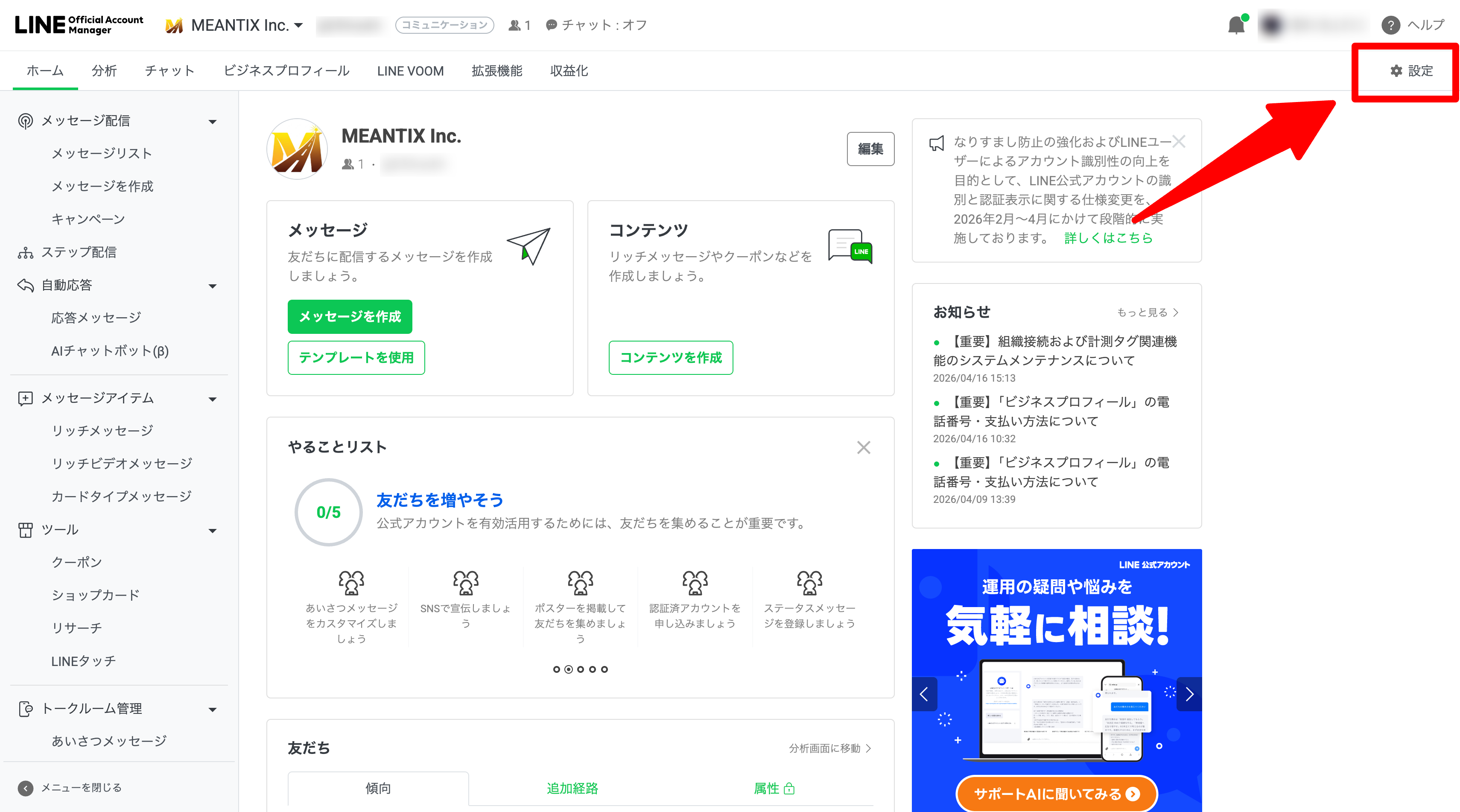
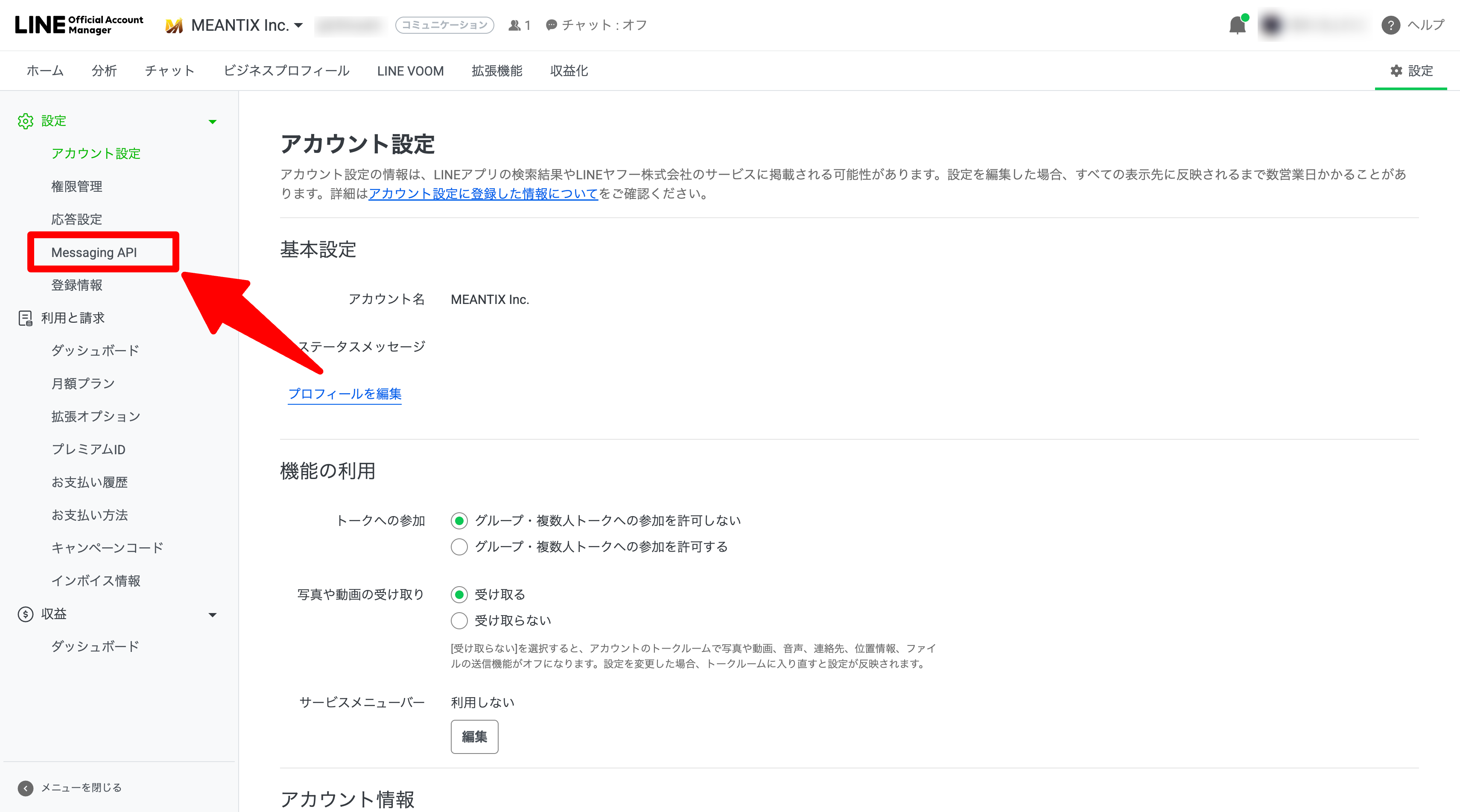
Proceed to "Settings"
Proceed to "Messaging API"
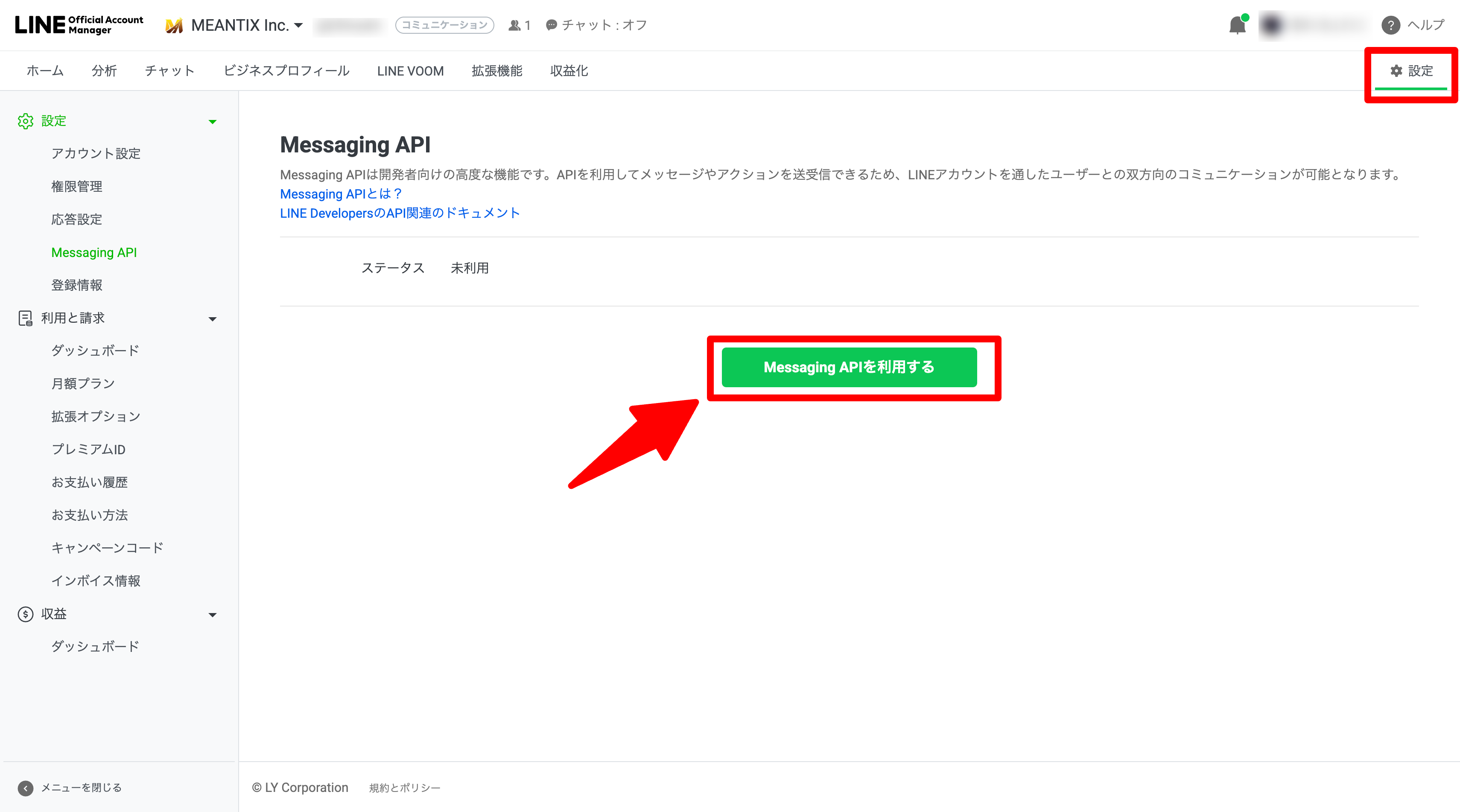
Proceed to "Use Messaging API"
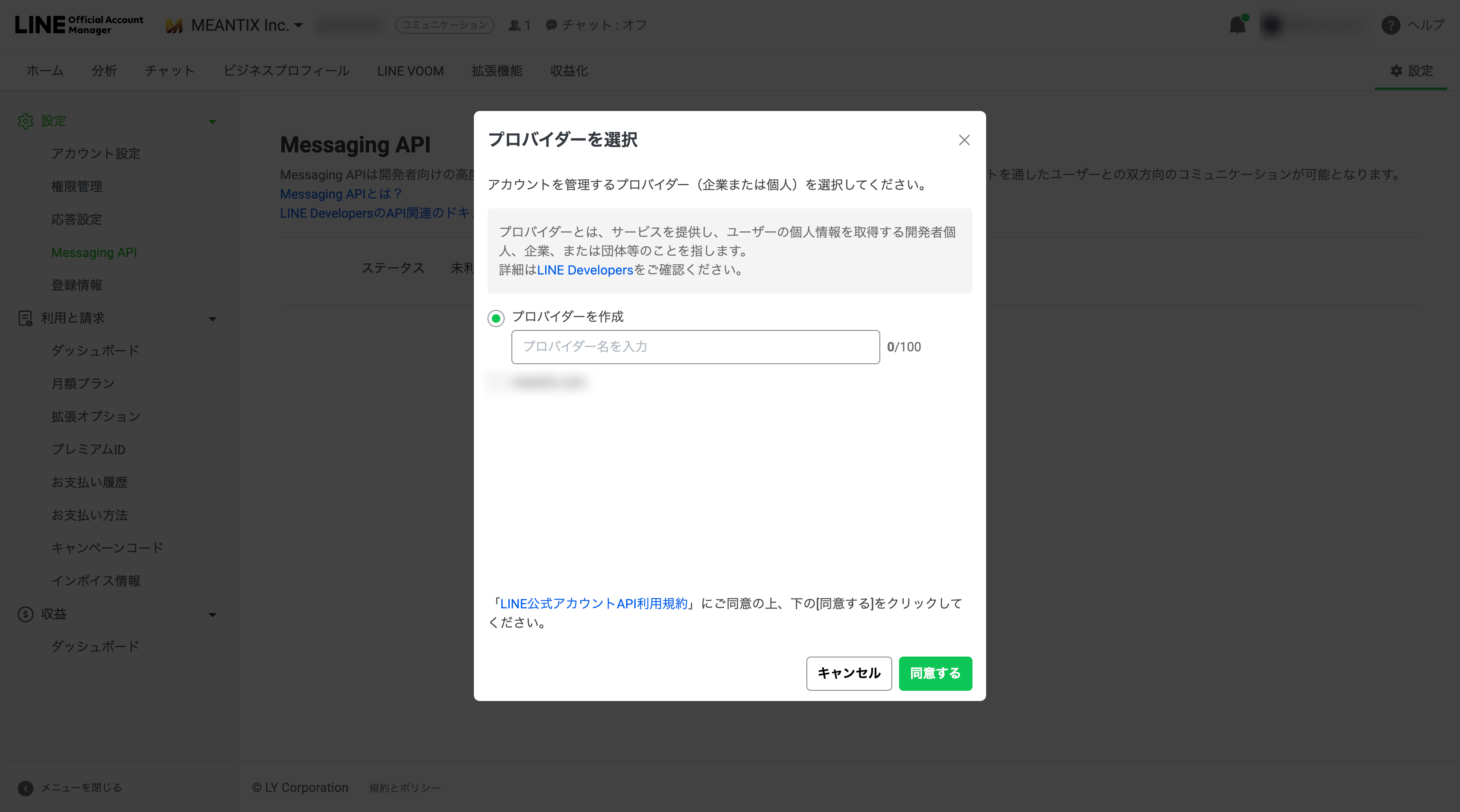
Create a LINE Developers provider.
(If a provider has already been created, you can select an existing one.)
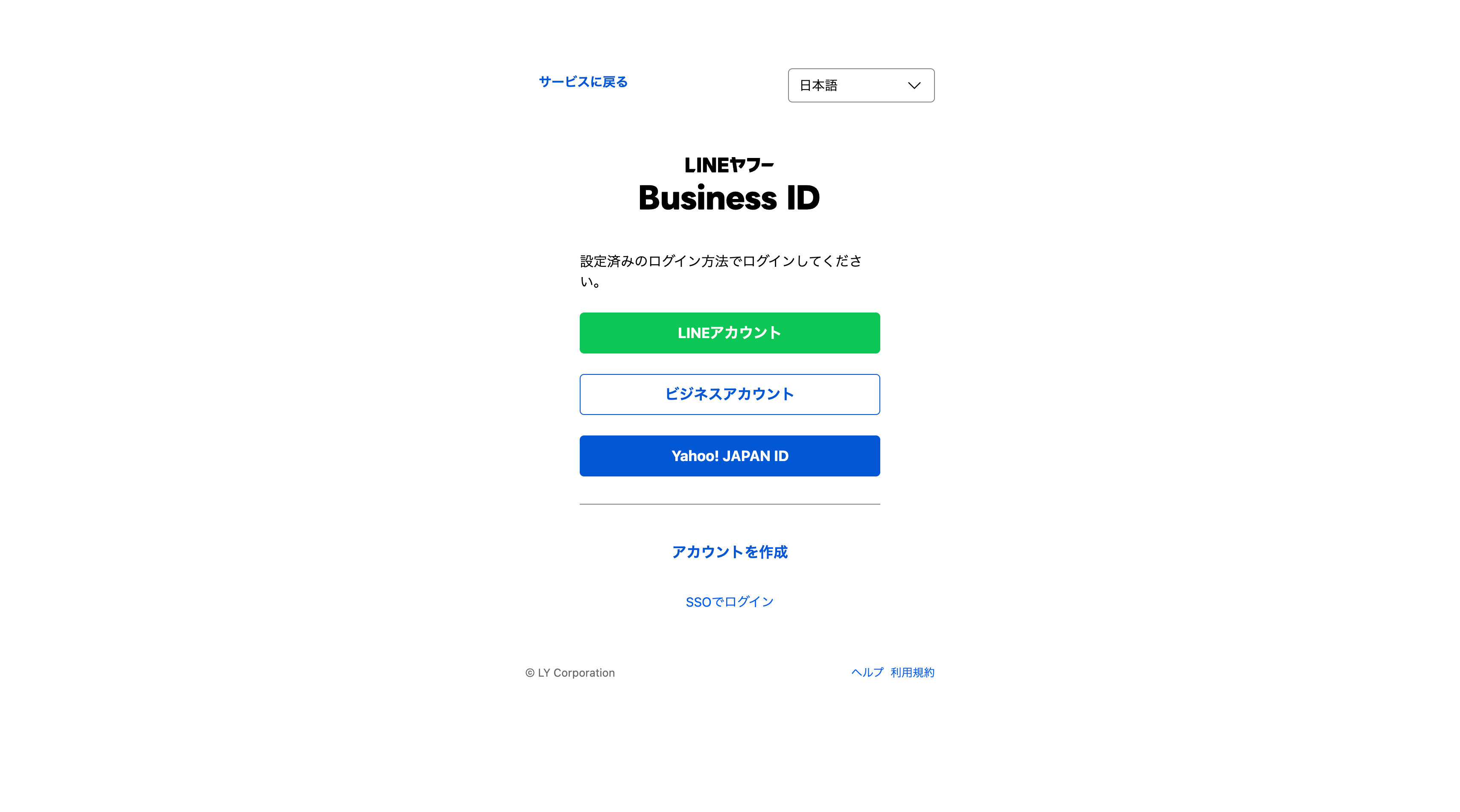
Log in to the LINE Developers Console
LINE Developers
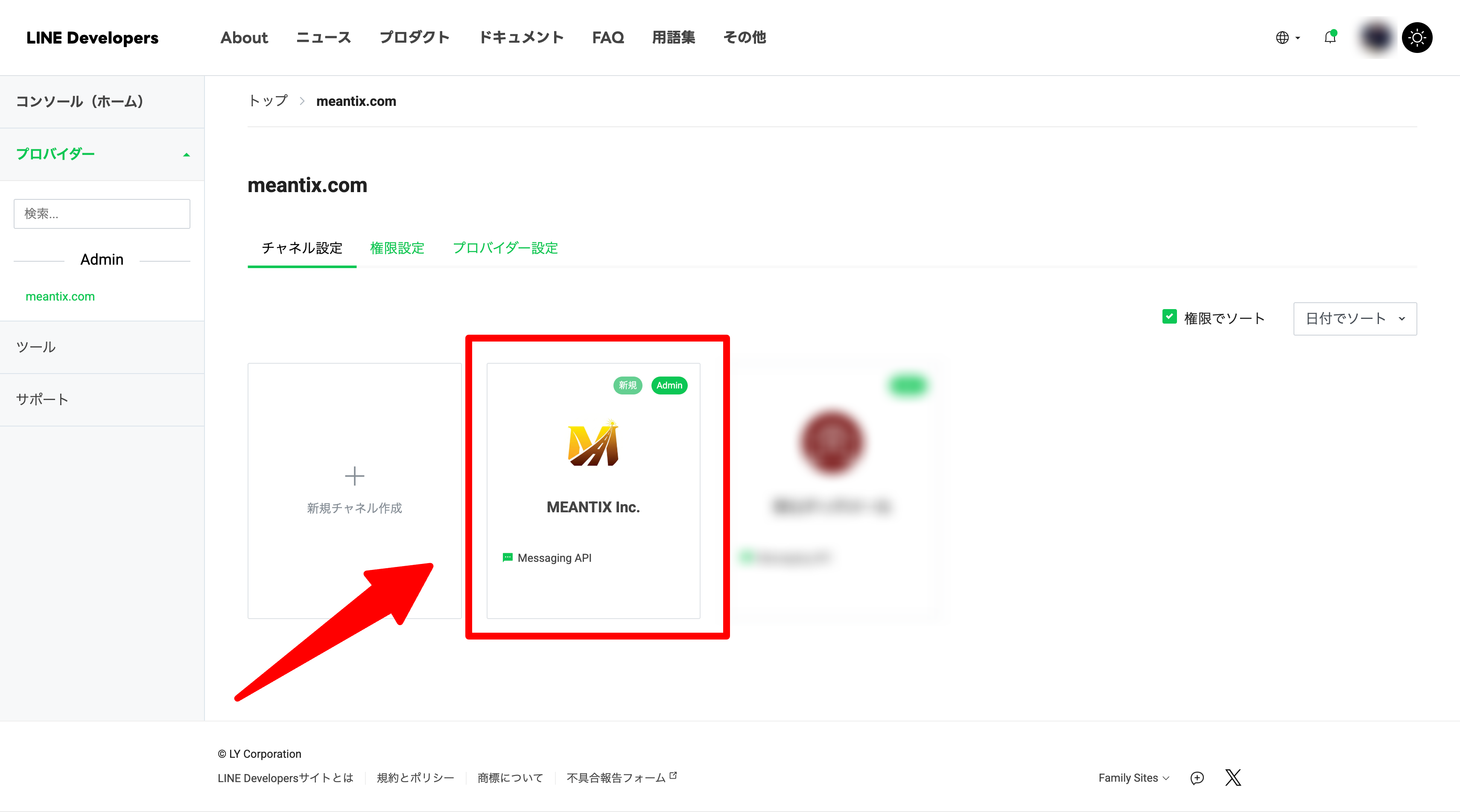
Select the created (or chosen) provider and confirm that a channel has been created.
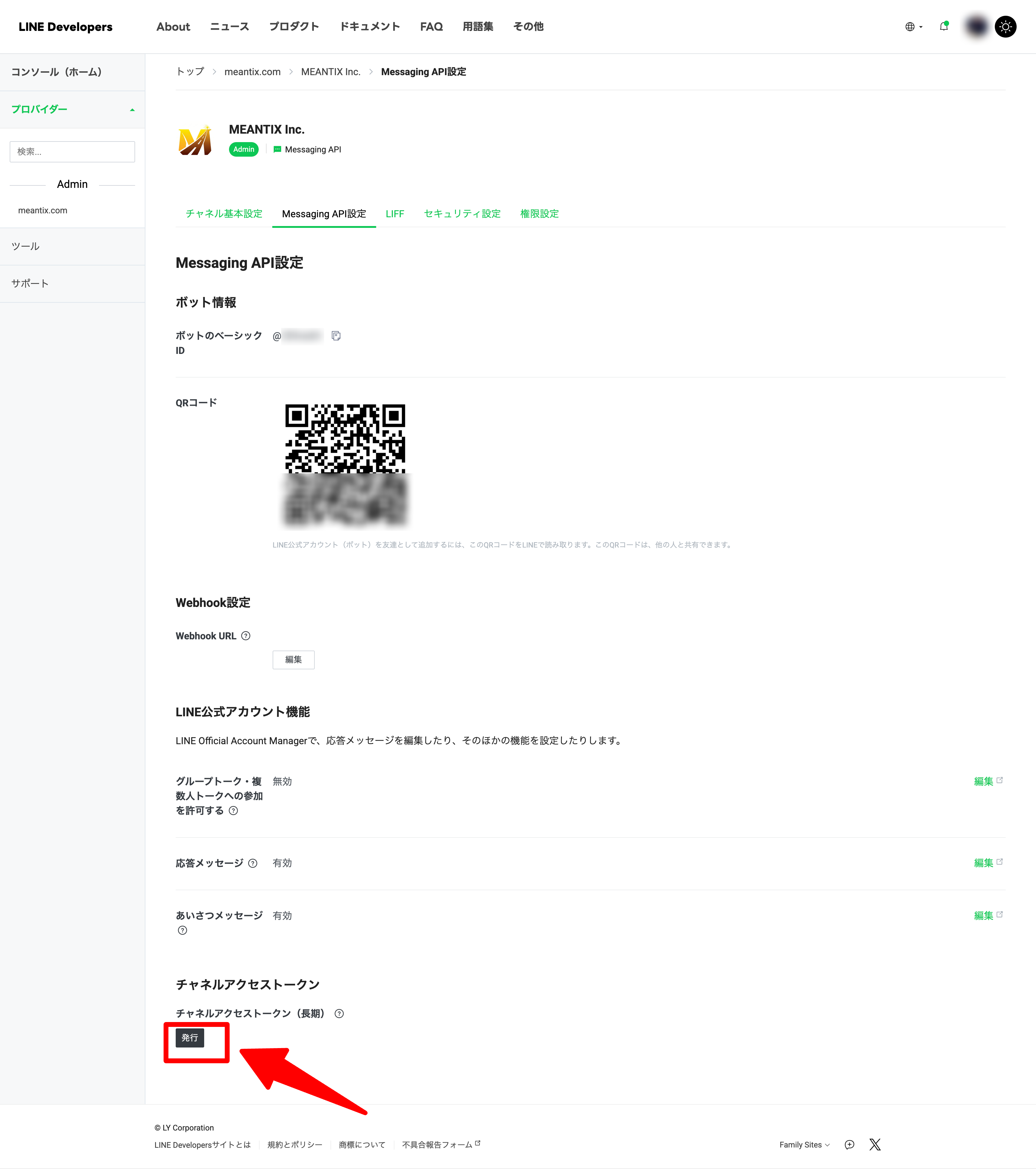
❸ Issue a long-lived Channel Access Token
Issue a "Channel Access Token (long-lived)" located in the "Messaging API Settings" tab of the created channel. Please copy it as it will be used later in GAS.
❹ Configure Google Apps Script
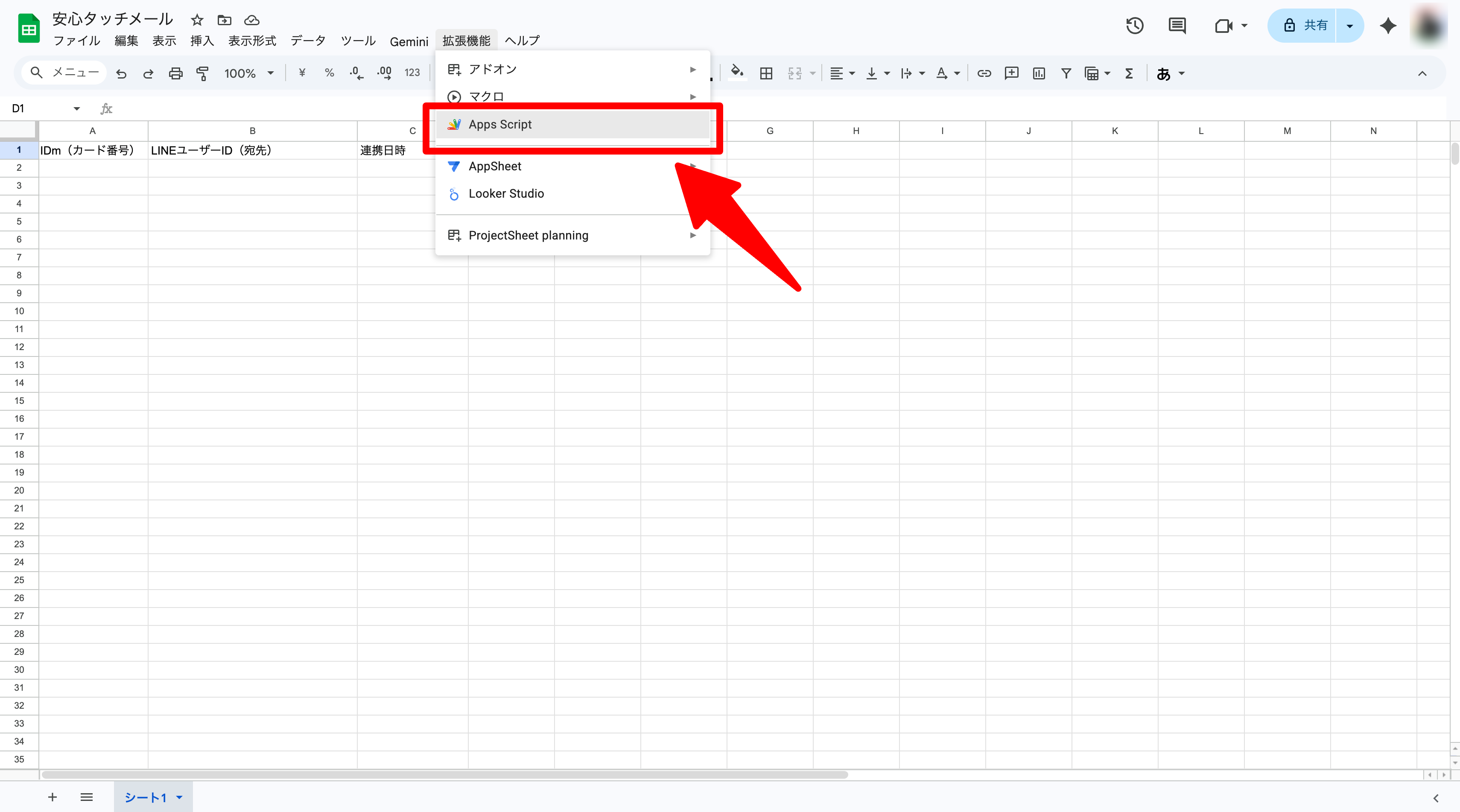
Create a new Google Spreadsheet, and in the first row, enter "IDm" in column A, "LINE ID" in column B, and "Linked Date and Time" in column C.
Open "Apps Script" from "Extensions" in the top menu and paste the following code.
// =========================================================
// [Initial Settings]
// Paste the "Channel Access Token" obtained by your facility below
// =========================================================
const LINE_ACCESS_TOKEN = 'Paste the issued Channel Access Token (long-lived) here';

/**
 * Main function to handle requests from the app and LINE
 */
function doPost(e) {
  const sheet = SpreadsheetApp.getActiveSpreadsheet().getActiveSheet();

  try {
    const json = JSON.parse(e.postData.contents);

    // =========================================================
    // Process 1: Link setting from parents (Receiving Webhook from LINE)
    // =========================================================
    if (json.events && json.events.length > 0) {
      const event = json.events[0];
      if (event.type === 'message' && event.message.type === 'text') {
        const text = event.message.text;
        const userId = event.source.userId;

        if (text.startsWith("idm=")) {
          const idm = text.replace("idm=", "").trim();
          // Record IDm and User ID in the spreadsheet
          sheet.appendRow([idm, userId, new Date()]);
          replyLineMessage(event.replyToken, "Linking complete!\nYou will now receive notifications from Safe Touch Mail.");
        }
      }
      return ContentService.createTextOutput(JSON.stringify({status: "success"})).setMimeType(ContentService.MimeType.JSON);
    }

    // =========================================================
    // Process 2: Touch notification from the app
    // =========================================================
    if (json.idm && json.action === 'touch') {
      const targetIdm = json.idm;
      const data = sheet.getDataRange().getValues();
      let targetUserId = null;

      // Find the latest linked data from the bottom of the sheet
      for (let i = data.length - 1; i >= 1; i--) {
        if (String(data[i][0]) === String(targetIdm)) {
          targetUserId = data[i][1];
          break;
        }
      }

      if (targetUserId) {
        let messageText = "";

        // Prioritize custom messages set in the app if available
        if (json.custom_message) {
          messageText = json.custom_message;
        } else {
          // Otherwise, create a standard message
          messageText =
            `Notice of ${json.mode} from [${json.terminal_name}]\n\n` +
            `${json.child_name} has ${json.mode}.\n\n` +
            `Location: ${json.location}\n` +
            `Sender: ${json.terminal_name}\n` +
            `Time: ${json.timestamp}`;
        }

        // Execute LINE send
        pushLineMessage(targetUserId, messageText);

        return ContentService.createTextOutput(JSON.stringify({status: "success"})).setMimeType(ContentService.MimeType.JSON);
      } else {
        return ContentService.createTextOutput(JSON.stringify({status: "error", message: "User not linked"})).setMimeType(ContentService.MimeType.JSON);
      }
    }
  } catch (err) {
    return ContentService.createTextOutput(JSON.stringify({status: "error", message: err.toString()})).setMimeType(ContentService.MimeType.JSON);
  }
}

// ---------------------------------------------------------
// Helper function: For sending replies
// ---------------------------------------------------------
function replyLineMessage(replyToken, text) {
  const url = "https://api.line.me/v2/bot/message/reply";
  const payload = {
    "replyToken": replyToken,
    "messages": [{"type": "text", "text": text}]
  };
  const options = {
    "method": "post",
    "headers": {
      "Content-Type": "application/json",
      "Authorization": "Bearer " + LINE_ACCESS_TOKEN
    },
    "payload": JSON.stringify(payload)
  };
  UrlFetchApp.fetch(url, options);
}

// ---------------------------------------------------------
// Helper function: For sending push messages
// ---------------------------------------------------------
function pushLineMessage(userId, text) {
  const url = "https://api.line.me/v2/bot/message/push";
  const payload = {
    "to": userId,
    "messages": [{"type": "text", "text": text}]
  };
  const options = {
    "method": "post",
    "headers": {
      "Content-Type": "application/json",
      "Authorization": "Bearer " + LINE_ACCESS_TOKEN
    },
    "payload": JSON.stringify(payload)
  };
  UrlFetchApp.fetch(url, options);
}
Replace the part 'Paste the issued Channel Access Token (long-lived) here' in the code with your own Channel Access Token obtained in Step 3.
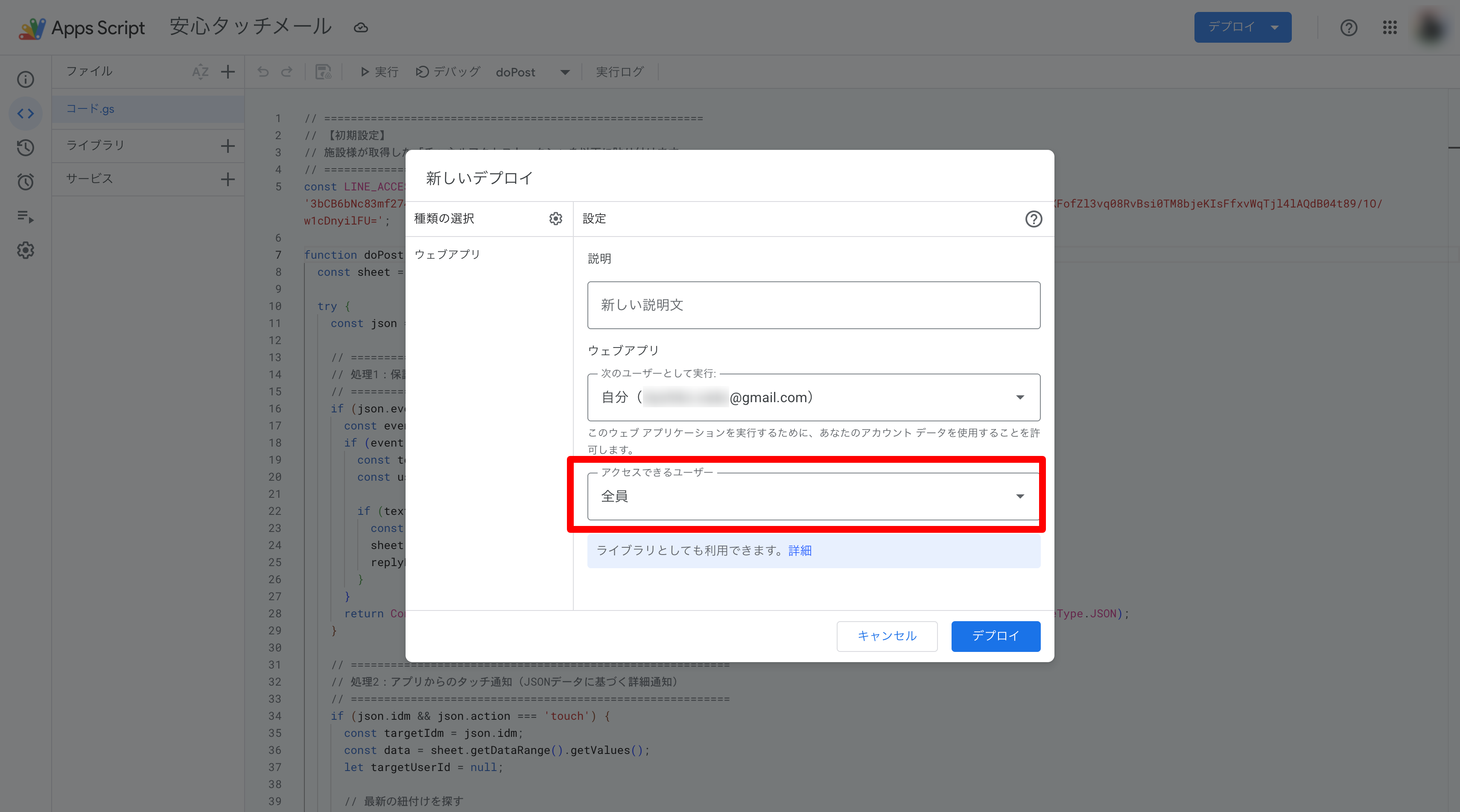
From "Deploy" > "New deployment" at the top right of the screen, select the type as "Web app" and set the access to "Anyone", then execute.
Copy the issued "Web app URL".
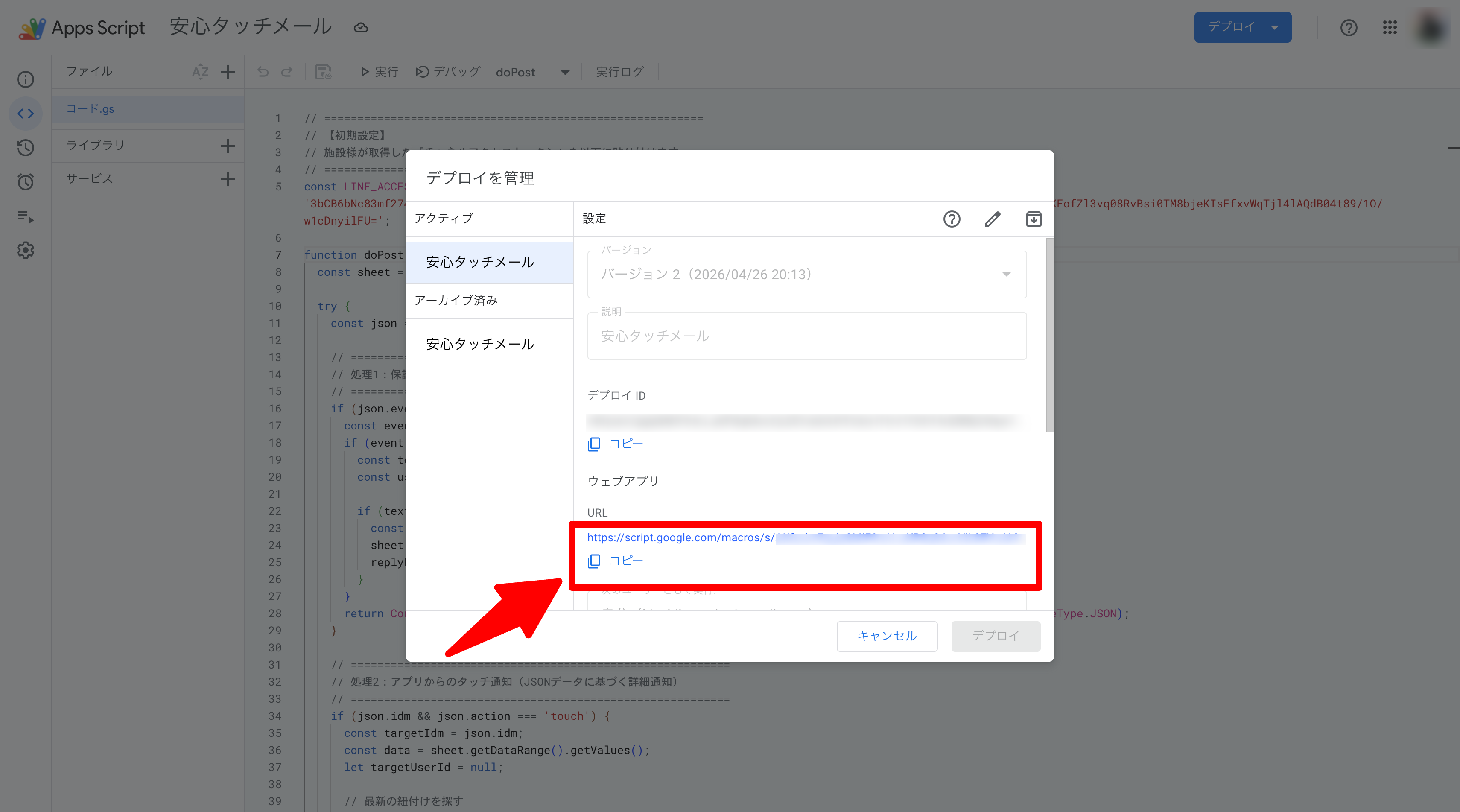
* The "Web app URL" is also used in the "Safe Touch Mail" settings. We recommend sharing it to your smartphone using a method you can access from your PC (e.g., email).
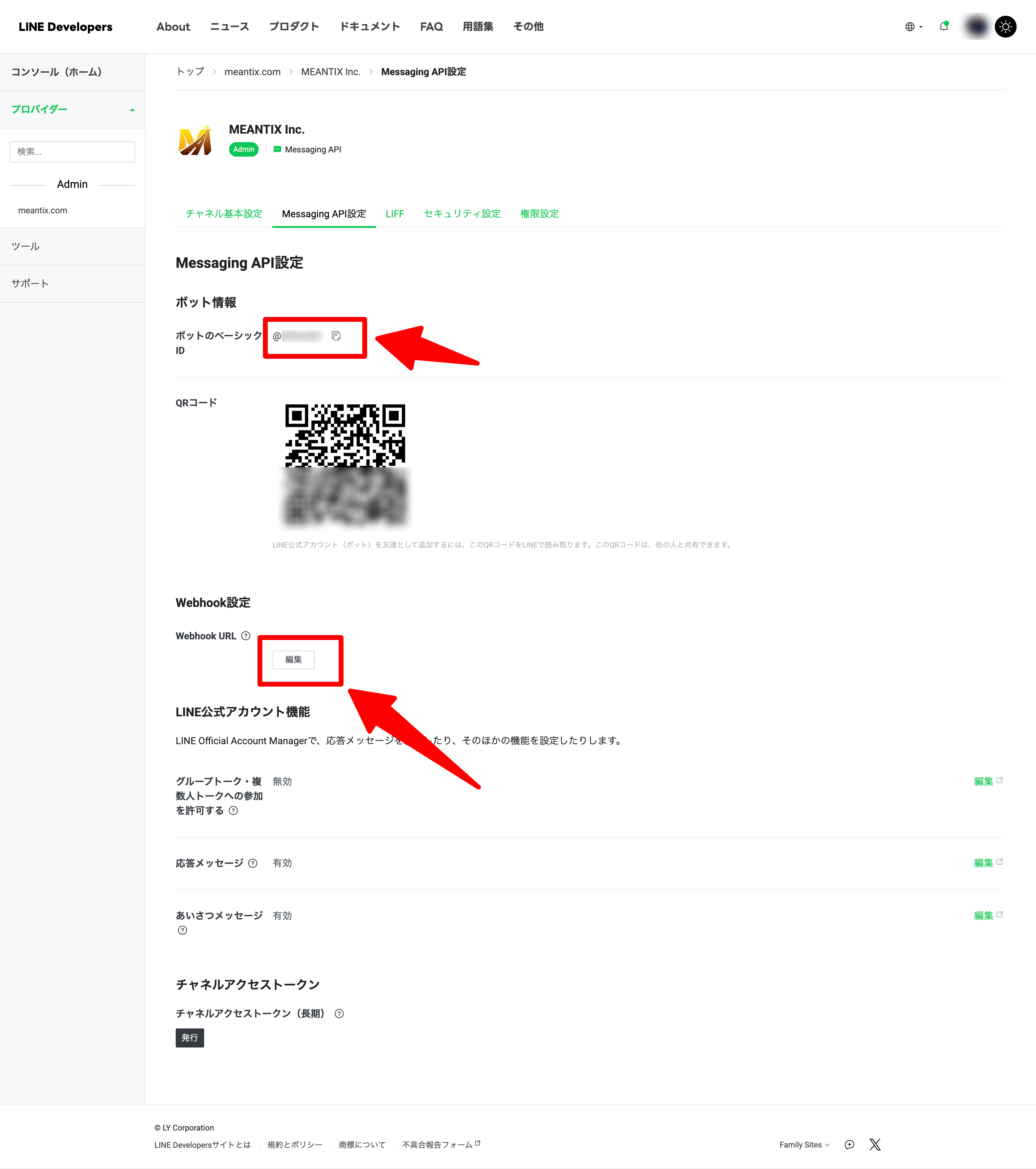
Paste the copied "Web app URL" by clicking "Edit" in the "Webhook URL" section inside the "Messaging API Settings" tab of your created channel on the LINE Developers Console.
The Bot Basic ID (the ID starting with @) on this page is your linked "LINE Official Account ID". This "LINE Official Account ID" will be used in the "Safe Touch Mail" settings. We recommend sharing it to your smartphone.
❺ App Settings
Open the Safe Touch Mail app and go to "LINE Notification Setup" from the initial settings screen.
Enter the "Web app URL" you shared earlier into the "LINE Notification Server URL".
Enter the "LINE Official Account ID (ID starting with @)" you shared earlier into the "Facility's LINE Official ID", then save.
❻ Displaying the QR code for LINE integration
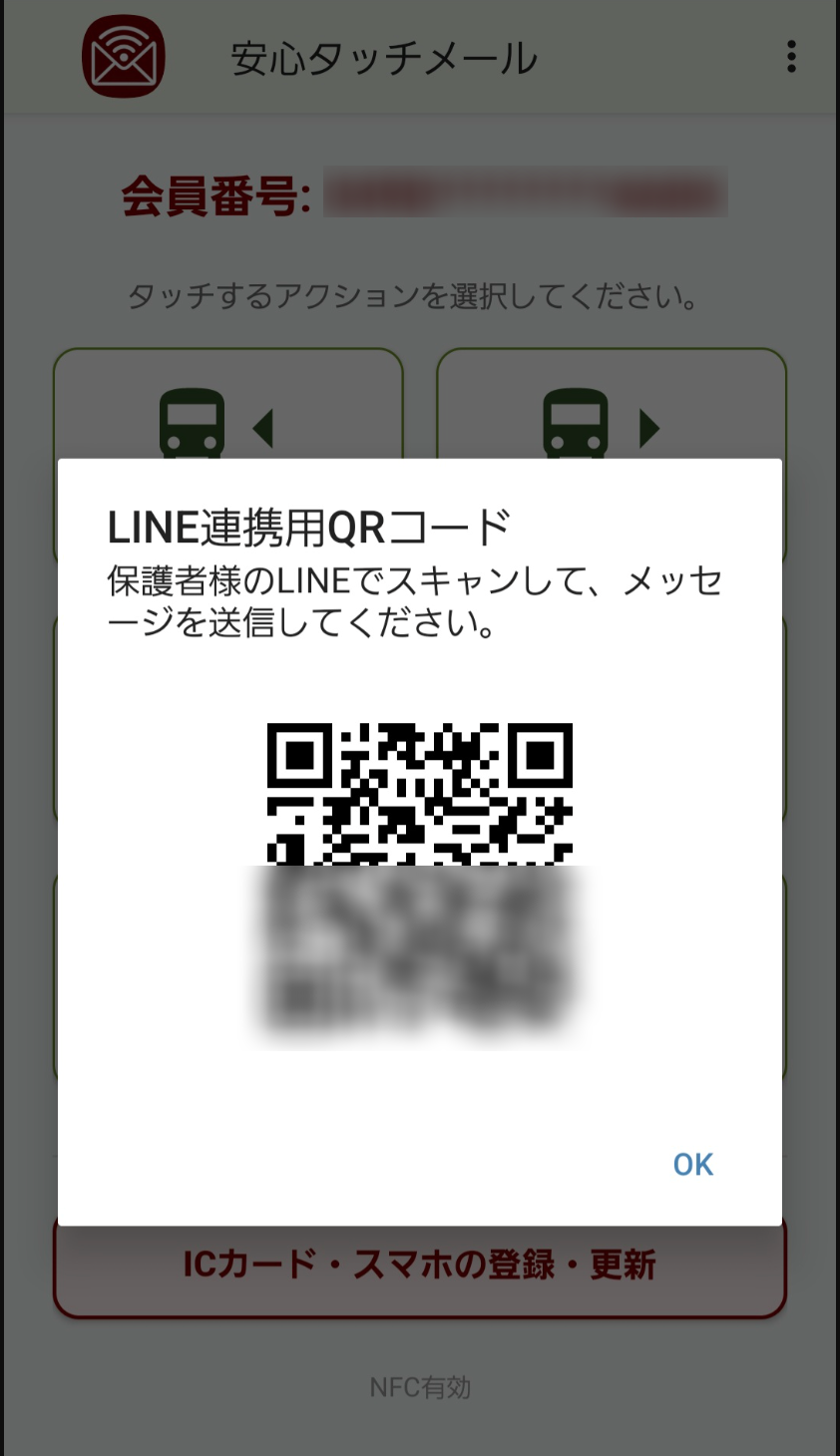
Once the settings up to step ❺ are completed, a QR code for LINE integration will be displayed when you select "Register/Update IC card or smartphone".
Please ask the parents or guardians who will receive the notifications to scan this QR code and send the message as is, to start receiving notifications on LINE.